
What this integration does
Mav works your leads over text and phone. This integration writes what Mav does back into AgencyZoom, so your team sees the activity in the CRM they already use.
You choose from 16 workflows. Each one watches for a single Mav moment and takes a single action in AgencyZoom. Turn on only the ones you want.
- Create a Lead adds a new lead to AgencyZoom and logs a note on it.
- Update Pipeline Stage finds the existing lead by phone number, moves it to a stage you pick, and logs a note.
The sync runs one way, with Mav writing to AgencyZoom.
Connecting the account
-
Open the Integrations page. Find the AgencyZoom card under Official Integrations and click Configure.
- Click Connect to sign into AgencyZoom. Enter the username and password you use for AgencyZoom. Mav exchanges them for an access token and stores only the encrypted token. Mav then calls your pipeline list once to confirm the login works.
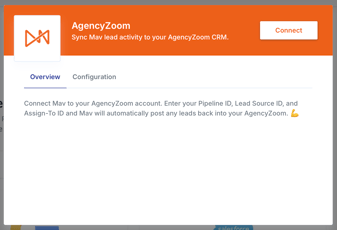
- Choose your account-wide settings. These six settings apply to every workflow. Mav reads the options straight from your AgencyZoom account, so each menu shows your real pipelines, users, and tags.
Setting
Required
What is does
Pipeline Required The pipeline Mav sends the lead to Lead Source Category Optional Narrows the Lead Source menu to one category. Leave it empty to see every source. Lead Source Required The source stamped on leads Mav creates. Assign To Required The AgencyZoom user who gets the new leads. Assignment Group Optional Assigns to a group instead of one person. If you set this, it overrides Assign To. Tag Optional A tag applied to leads Mav creates. Create the tag in AgencyZoom first. - Turn on the workflows you want. Every workflow starts switched off. Switch on the ones you want and set a Pipeline Stage for each. The stage is what the workflow writes, so a lead can move through your pipeline as Mav works it. Save, and the connection is live. Mav starts sending the next time one of those moments happens.
The eight events Mav sends
Each event below has both a Create a Lead workflow and an Update Pipeline Stage workflow. You can enable either, both, or neither.
Event |
Description |
What happened |
started |
Starts working a lead | Mav sent its first message to the lead |
interested |
Catches a positive intent | The lead replied with interest. |
party_line_available |
Starts a party line | Mav is dialing to connect the lead to a rep. |
party_line_completed |
Completes a party line | A rep connected to the lead on the call. |
completed |
Completes a lead | Mav finished its conversation with the lead. |
opted_out |
Opts out a lead | The lead asked to stop receiving messages. |
undeliverable |
Marks a lead undeliverable | The phone number could not receive messages. |
unqualified |
Marks a lead unqualified | Mav decided the lead does not qualify. |
How each workflow behaves
Create a Lead
- Looks up the phone number in AgencyZoom.
- Stops if a lead with that number already exists.
- Creates the lead in your pipeline and stage.
- Logs a note with everything Mav learned.
Update Pipeline Stage
- Looks up the phone number in AgencyZoom.
- Moves that lead to the stage you picked.
- Logs a note with everything Mav learned.
Pair them up. Update Pipeline Stage only works on a lead that already exists in AgencyZoom. If your leads do not reach AgencyZoom another way, turn on Create a Lead for your earliest moment, usually started or interested. Then use Update Pipeline Stage for everything after it.